Agentic Coding with Unity
Agentic coding means giving a coding agent a task it can carry out and check. Use Unity CLI and the Pipeline package to automate tests, builds, and repetitive Editor work.
- Unity CLI: the terminal tool
- Install Editors and platform modules, open projects, and run commands from scripts or CI. It works without the Hub desktop app. Install and use the CLI.
- Unity Pipeline: the Editor connection
- A package inside your Unity 6+ project. It connects the CLI to your running Editor, so an agent can inspect the project, make changes, and run checks. Pipeline setup and commands.
- 1. Describe the taskYou define the goal and what success looks like.
- 2. Make the changeThe agent inspects the project and edits code or assets.
- 3. Run checksUnity runs the tests or build. Scripts save results and logs.
- 4. Review the resultYou check the changes, test results, and game behavior.

Set up Unity for your coding agent
Use Unity 6.0 or later and a coding agent that can run terminal commands. Save your work, then install Unity CLI. Reopen your terminal in the project folder with Unity open.
unity auth login
unity pipeline install
# Wait for Unity to finish compiling, then:
unity pipeline list
unity command
Check for your project and Pipeline: Installed. If several Editors are open, use unity command --project-path=<path-to-your-project>. Setup help.
Open your coding agent in this project folder, then choose a prompt below. For CI, the build machine also needs the correct Editor, platform modules, and licensing setup.
Example workflows
These examples draw on Mecha Drive, a vibe-coded Unity game. Each workflow notes what was verified.
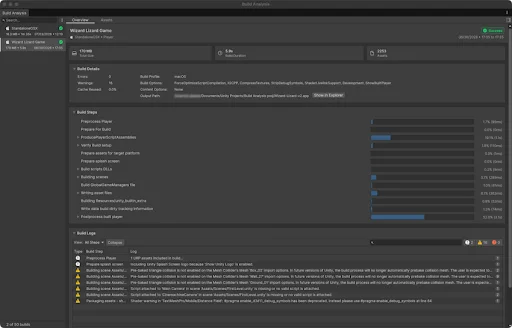
Test every pull request
Compile, run tests, and build automatically. Keep useful logs when a check fails.
View workflow and prompt
Give the agent: Your repository, CI provider, Unity version, build target, and runner licensing setup.
Workflow
- Have the agent inspect the existing pipeline, package lockfile, and build scripts. Keep the project’s exact Editor version.
- Add compile, Edit Mode, and Play Mode checks. Give each parallel Unity job its own checkout. Cache imports by runner OS, Editor version, target, and package lockfile.
- Build only after tests pass. Save test XML, Editor logs, and a build labeled with the commit. Run expensive device checks nightly.
Try this prompt
Create a pull-request pipeline for this Unity project using our existing CI provider.
Read ProjectSettings/ProjectVersion.txt and Packages/packages-lock.json. Use our runner and license setup; list any missing configuration.
Run Edit Mode and Play Mode tests, then build a test player for our target platform. Use separate checkouts for parallel Unity jobs. Keep logs and test results even when a job fails.
Add timeouts and cancel superseded branch runs. Summarize the first actionable error with its file and line.
Verify that a deliberately failing test blocks the build, then remove that test and run again.
Check the result
A broken test blocks the build. A clean checkout succeeds. A cache miss still works. CI uploads useful evidence on failure.
Evidence and limits
Mecha Drive uses scripts to check game content and builds. Running those checks automatically on every pull request is a suggested next step.
Replay a full gameplay test
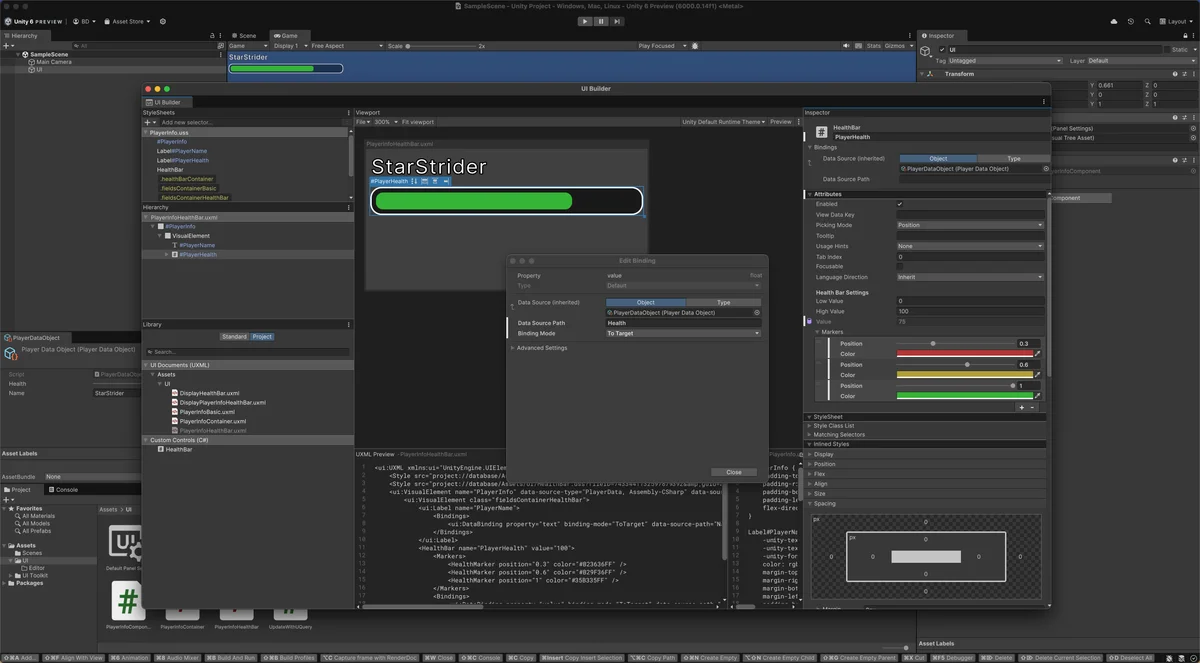
Test a full game loop: start a run, collect an item, take damage, die, retry, and reload a save.
View workflow and prompt
Give the agent: A test scene, the expected game rules, and a repeatable bug or player journey.
Workflow
- Ask the agent to find the real input, damage, inventory, and save paths. Define expected results before writing tests.
- Build a repeatable Play Mode journey with a fixed seed and isolated save data. Wait for game state with a timeout instead of arbitrary pauses.
- Add edge cases: repeated collision events, pausing during death, and retrying twice. Capture the failing state and logs; run visual and input checks in a player too.
Try this prompt
Automate this journey in our test scene: start, collect a key, take lethal damage, retry, then reload the save.
Use the real gameplay systems. Assert one key is awarded, death triggers once, retry restores control, and saved progress survives.
Check whether two collisions in one physics step apply damage twice. If that breaks the game’s rules, write a failing test before fixing it.
Keep the test and attach failure logs. Isolate test saves and clean up spawned objects.
Report which checks ran in the Editor, in a built player, and which still need a person.
Check the result
If a bug is found, the test fails before the fix and passes afterward. Repeated runs start clean. A person still checks feel, readability, and controls.
Evidence and limits
Mecha Drive has automated tests for driving and rewards, plus browser checks for finishing a run, pausing, retrying, and reloading. The key-and-damage example above is a suggested adaptation.
Build, deploy, and verify a release
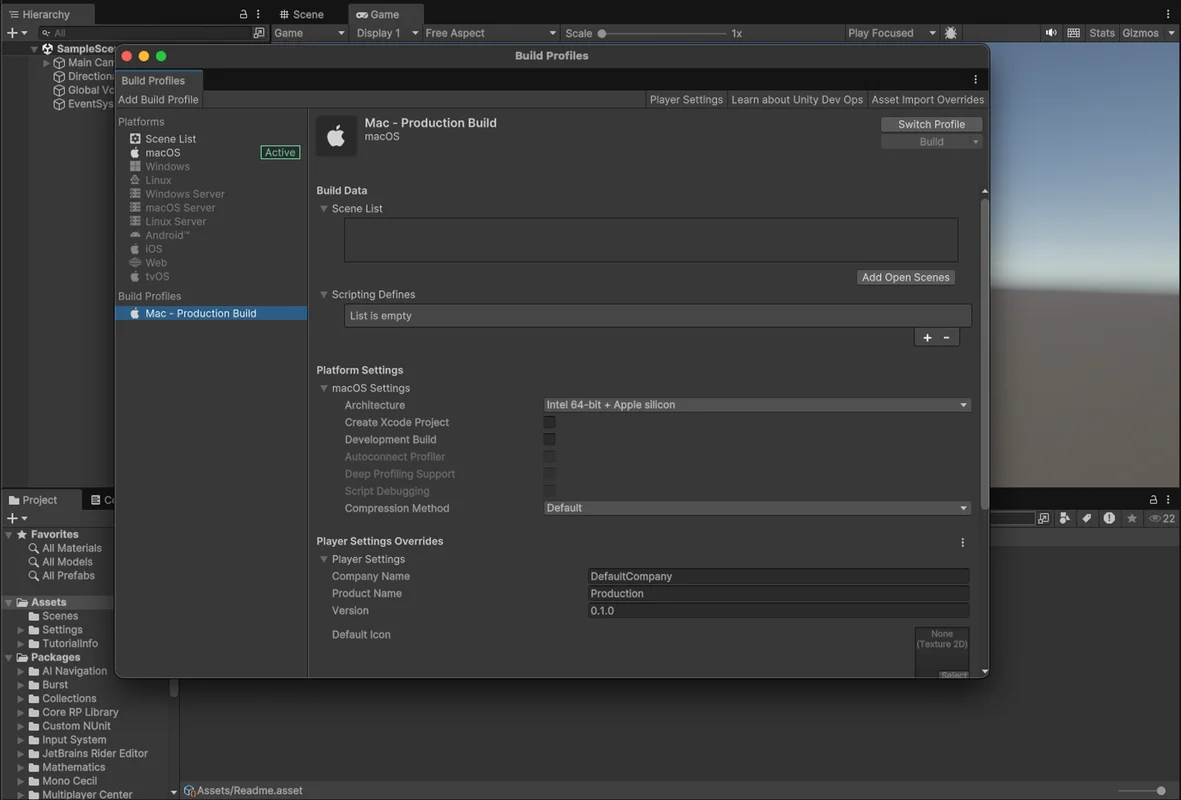
Package a release, publish a preview, check it starts, and keep the previous build ready to restore.
View workflow and prompt
Give the agent: A build profile, hosting or store destination, CI secrets, and your release rules.
Workflow
- Have the agent turn the release checklist into a script: select the profile, set the version, build, and record the commit and file hashes.
- Upload to a preview destination. Launch the actual build and check its first scene, content downloads, save loading, and Console or player logs.
- Promote the tested files to production under your release rules. Verify the live version and retain the previous files for rollback. For store releases, follow the platform’s signing and review requirements.
Try this prompt
Automate our Unity Web release using the existing build profile and hosting provider.
Create a versioned output folder and a manifest with the commit and file hashes. Keep credentials in CI secrets.
Publish a preview. In a real browser, verify the loader, compressed files, first playable scene, and absence of startup errors.
Promote those exact files using our production approval rules; do not rebuild them.
Verify the live version and document a rollback to the previous build. If a step fails, stop and retain its logs.
Check the result
The deployed commit matches the tested build. A real browser reaches gameplay. A rollback restores the earlier version and its content.
Evidence and limits
Mecha Drive checks its build before publishing, then tests the live game in a browser. Automatic preview releases and rollback tests are suggested next steps.
Find broken assets automatically
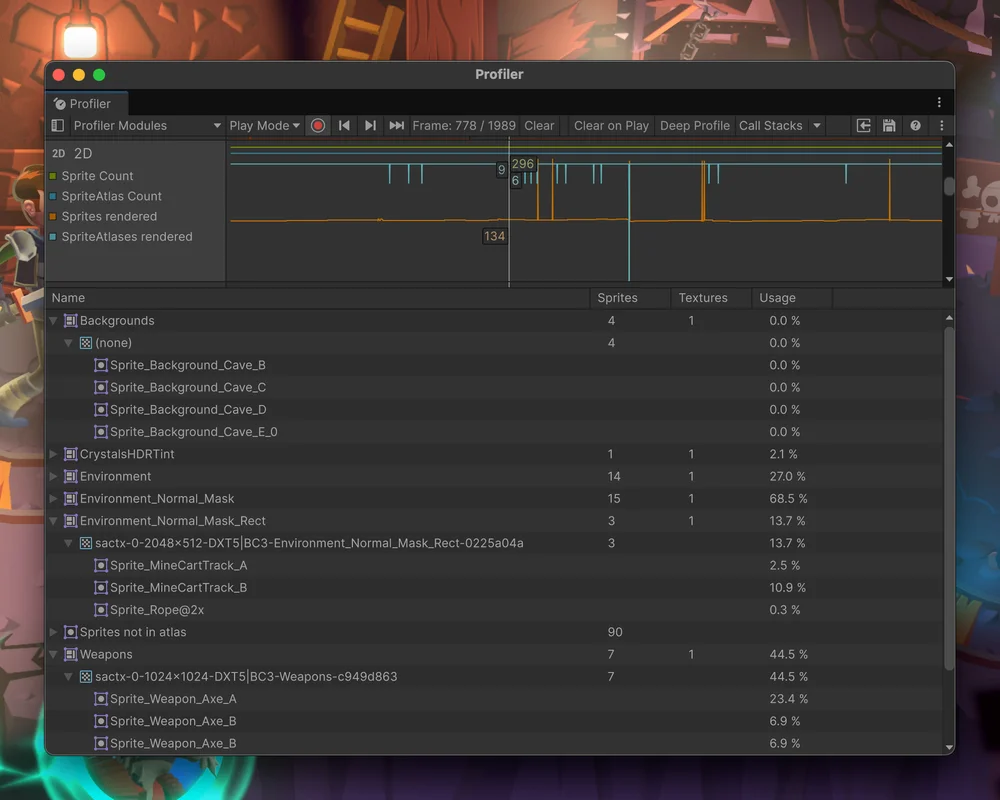
Find missing scripts, broken prefab references, oversized textures, and import settings that waste memory.
View workflow and prompt
Give the agent: Your asset folders, platform budgets, naming rules, and known exceptions.
Workflow
- Ask for a read-only report first. Include asset paths, measured sizes, and the rule each item breaks.
- Turn agreed rules into an Editor validation command. Check missing scripts, required references, texture limits, and platform import settings.
- Run it on changed assets in pull requests and scan the full project nightly. Fix a small batch, then compare affected scenes and builds.
Try this prompt
Build an asset validator for our Android project. First report findings without changing files.
Check missing scripts, required prefab references, and textures above our documented size budget. List exceptions separately.
Add a command that CI can run, with asset paths and a nonzero exit code for blocking issues.
Apply only the import fixes we select. Preserve .meta files and GUIDs. Do not delete assets just because a simple reference search misses them.
Compare the affected scene screenshots and build size before and after.
Check the result
An intentionally broken prefab fails validation. Exceptions stay explicit. Running fixes twice creates no extra changes or broken references.
Evidence and limits
Mecha Drive checks that game assets stay intact and use the expected image settings. The broader asset scanner above is a suggested next step.
Catch performance regressions
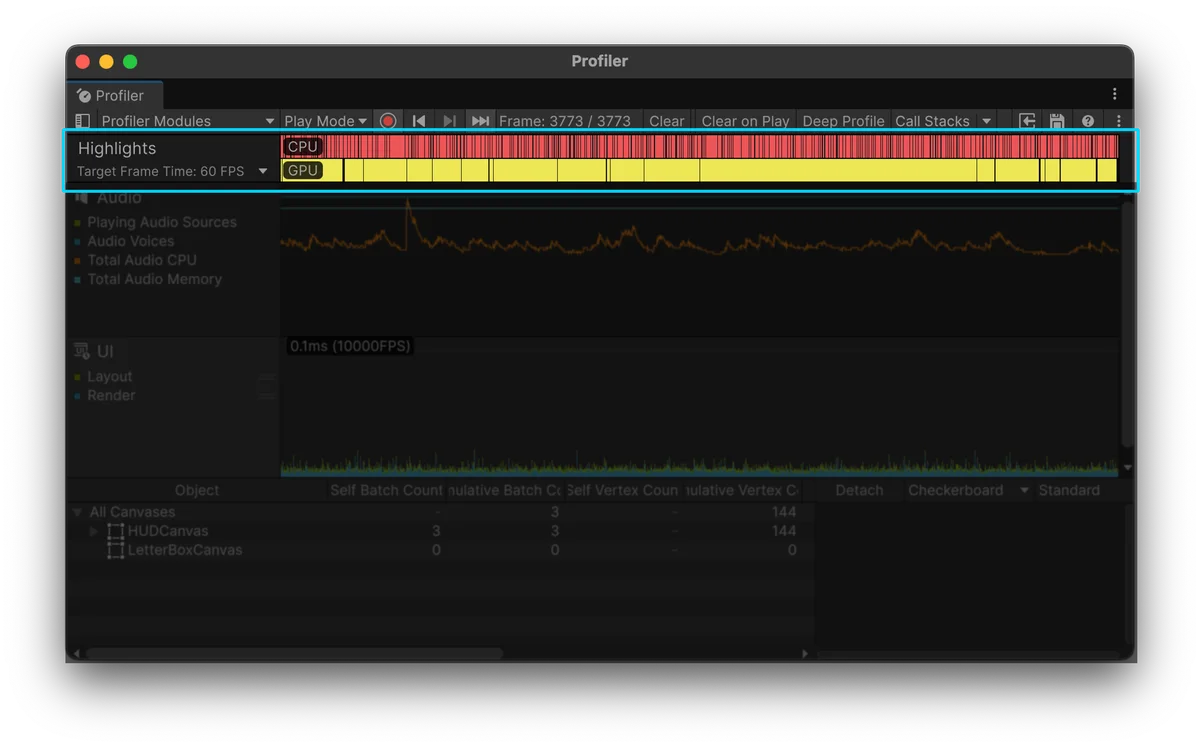
Replay a busy scene, compare frame time and memory, and flag a regression with evidence.
View workflow and prompt
Give the agent: A repeatable scene, a target device, a known-good build, and agreed performance limits.
Workflow
- Have the agent create a fixed camera or input replay with warm-up time. Measure the same workload on the same device and build settings.
- Compare frame-time spikes, allocations, and peak memory across several runs. Attach captures and flag changes outside your agreed tolerance.
- Fix one measured cause, such as repeated allocations or unnecessary updates. Rerun the replay and compare screenshots to catch lost detail.
Try this prompt
Add a nightly performance check for our busiest gameplay scene on our test device.
Replay the same route and spawn sequence after warm-up. Keep player build settings, resolution, quality, and frame cap the same; record the device and graphics API.
Measure typical and slow-frame time (median and 95th percentile), allocations, and peak memory across three runs.
Compare with the last accepted build using our existing budgets. Save raw results and captures; flag noisy runs separately.
Investigate the largest repeatable regression. Make one focused fix, then compare performance and matching screenshots.
Do not reduce enemy count or visual quality to make the numbers pass.
Check the result
The comparison uses the same hardware and settings. The slowdown repeats. The fix improves the measured cost without changing the intended scene.
Evidence and limits
Testing caught a change that made Mecha Drive slower, so it was left out. Those measurements came from the Unity Editor; phone performance still needs separate testing.